Connecting your accounts
Connect your accounts in 3 steps each
About two minutes per platform. Connect only the ones you use. Keys are imported into your own browser and never stored on our servers.
The animations are simplified illustrations; the real Kalshi and Polymarket screens may look a little different.
What’s an API key?
A password made just for apps. Kalshi or Polymarket US gives it to you so ArbTrader can read your balance and, on Quant, place trades you confirm. ArbTrader never moves money in or out of your account, the key stays in your browser, and you can delete it on Kalshi or Polymarket US any time.
Do I need one?
No. The scanner, spreads, whale tracker and AI Analyst all work without connecting anything. Connect only to see your balances and P&L, or to trade from ArbTrader. Polymarket (the main site) doesn’t need a key at all, just your wallet address.
Kalshi
For P&L, balances and one-tap ticketsOn Kalshi, open Account & security and click Create key.
Open Kalshi ↗ Your profile icon (top right) → Account & security → API keys.
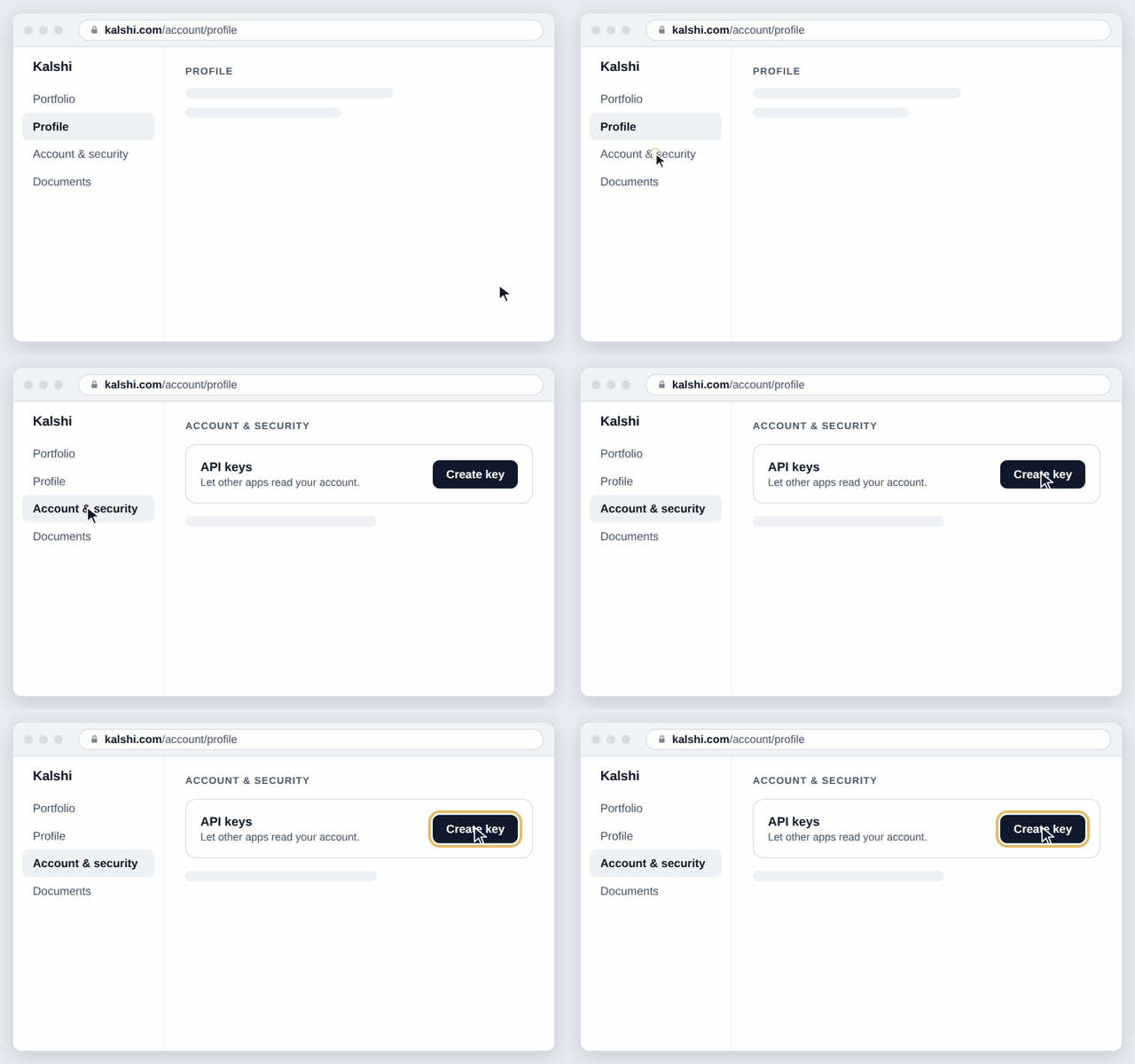
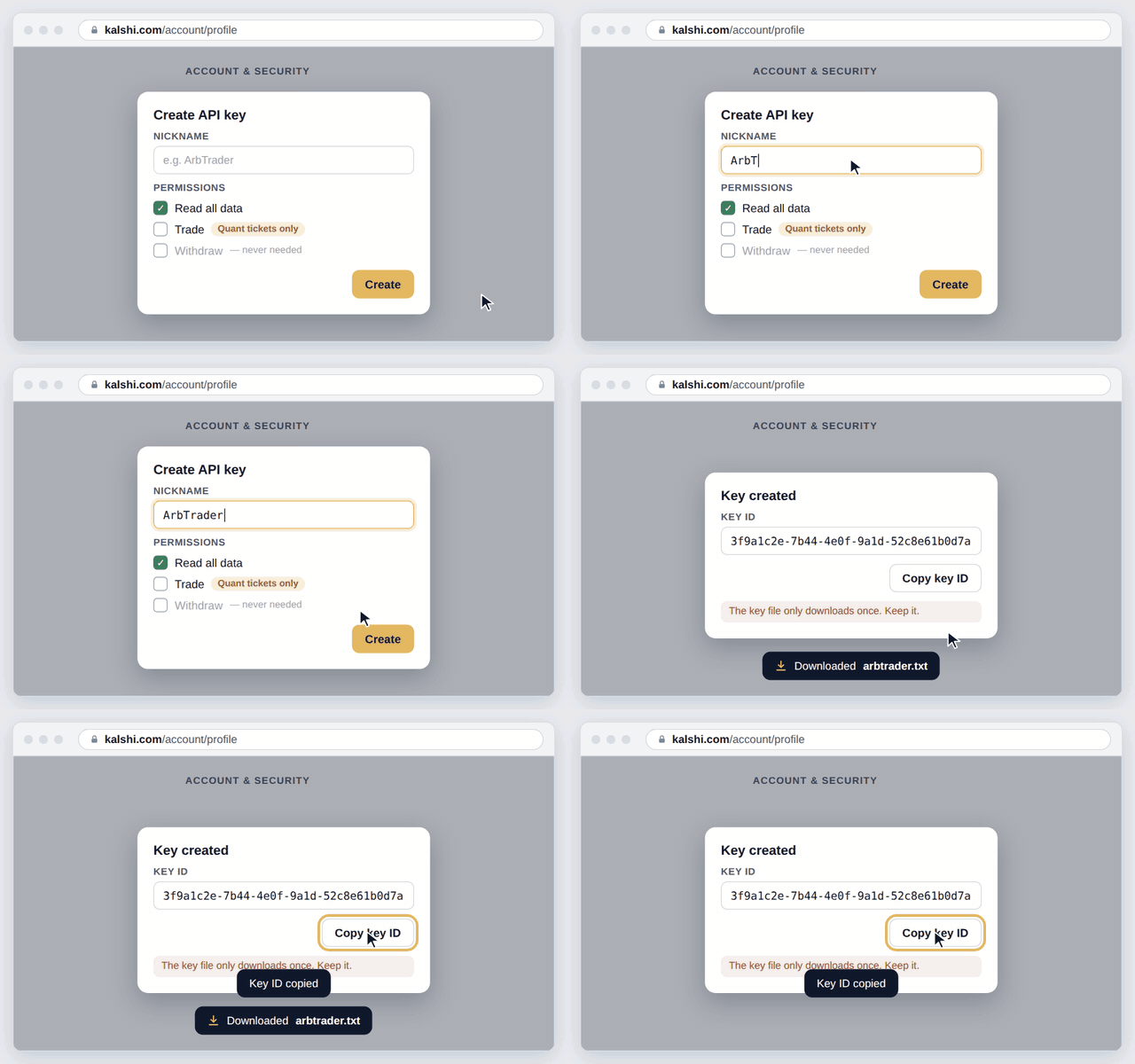
Name it “ArbTrader”, keep Read ticked, click Create.
A key file downloads and Kalshi shows a Key ID. Copy the Key ID and keep the file. Tick Trade only if you’re on Quant and want one-tap tickets. Never tick withdrawals.
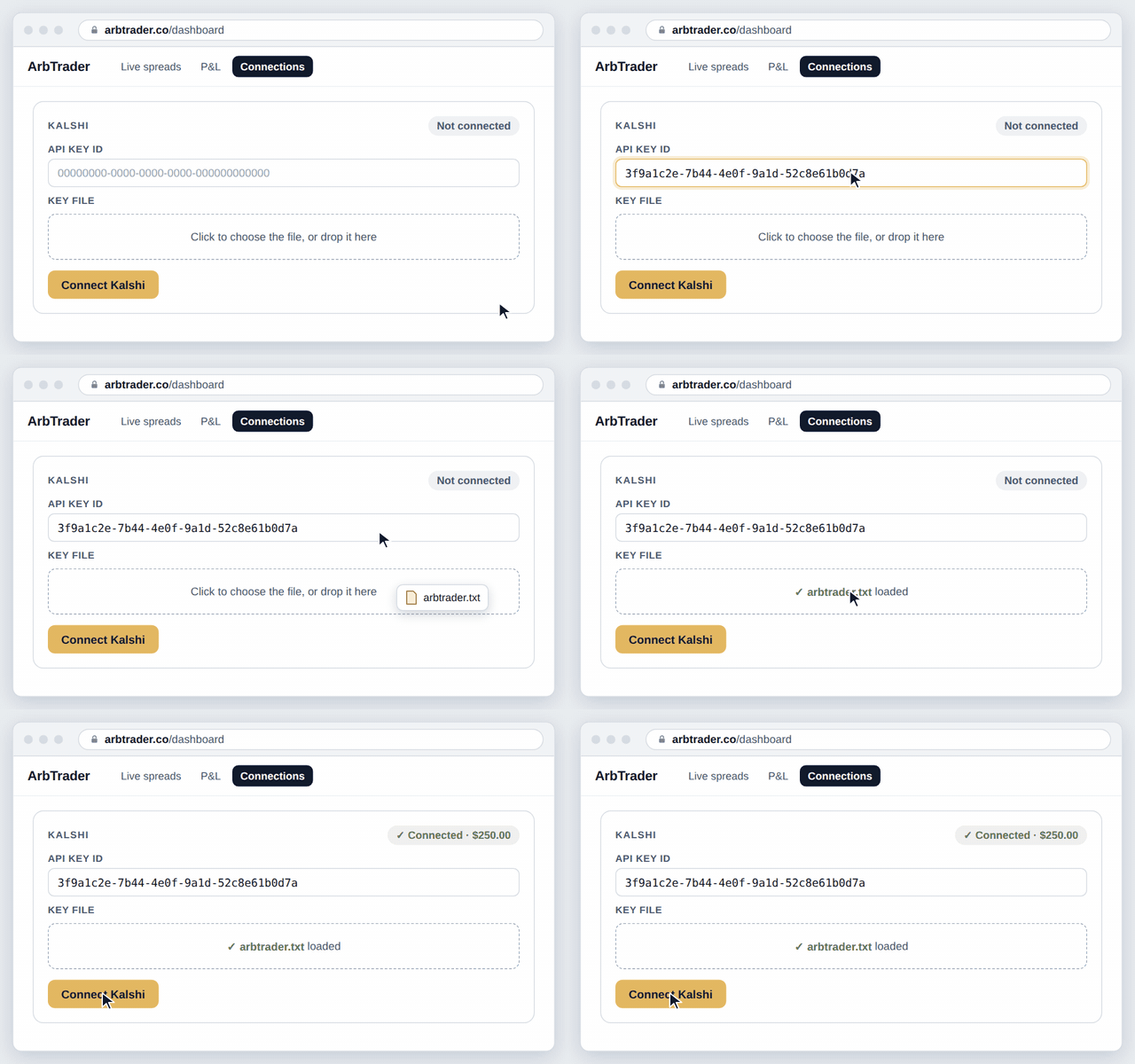
In ArbTrader, paste the Key ID, drop in the file, click Connect Kalshi.
Dashboard → Settings → Connections. You’re done when it says Connected with your balance.
More details and how your key is kept safe
Kalshi has no “log in with Kalshi” for other apps, so it gives you a key file instead. That file is imported into this browser’s key store so that page code can sign with it but can’t read it back out. Requests are signed here and passed through arbtrader.co, because Kalshi’s API doesn’t accept calls from web pages, the key itself never leaves this browser. Start with a read-only key: that is all P&L, positions and balances need. Add Trade only when you want one-tap tickets.
- Log in at kalshi.com and open Account & security (your profile icon, top right). Find API keys and click Create key.
- Nickname: anything, for example “ArbTrader”.
- Key type: Ed25519 (Kalshi’s default) or RSA; both work here. ArbTrader reads which kind the file holds and signs accordingly.
- Public key: leave it empty. Kalshi then generates the key pair and downloads the private key for you.
- Permissions: leave Read all data ticked. Add Trade (place and cancel orders) only if you’re on Quant and want one-tap order tickets or auto-sell; for P&L and positions, read is enough. Don’t grant withdrawals; ArbTrader never needs them.
- Click Create. Kalshi downloads the private key as a text file and shows the Key ID. Save the file now; the key can’t be shown again.
- On the dashboard’s Connections tab, paste the Key ID, drop the downloaded file on the box (or open “Paste it instead” and paste its contents; it starts with
-----BEGIN PRIVATE KEY-----or-----BEGIN RSA PRIVATE KEY-----), and click Connect. ArbTrader reads your balance once to prove the key works and shows it next to the Connected badge. - If Kalshi asks you to verify your location for API trading, do that on the same page; it expires and has to be renewed now and then.
Polymarket
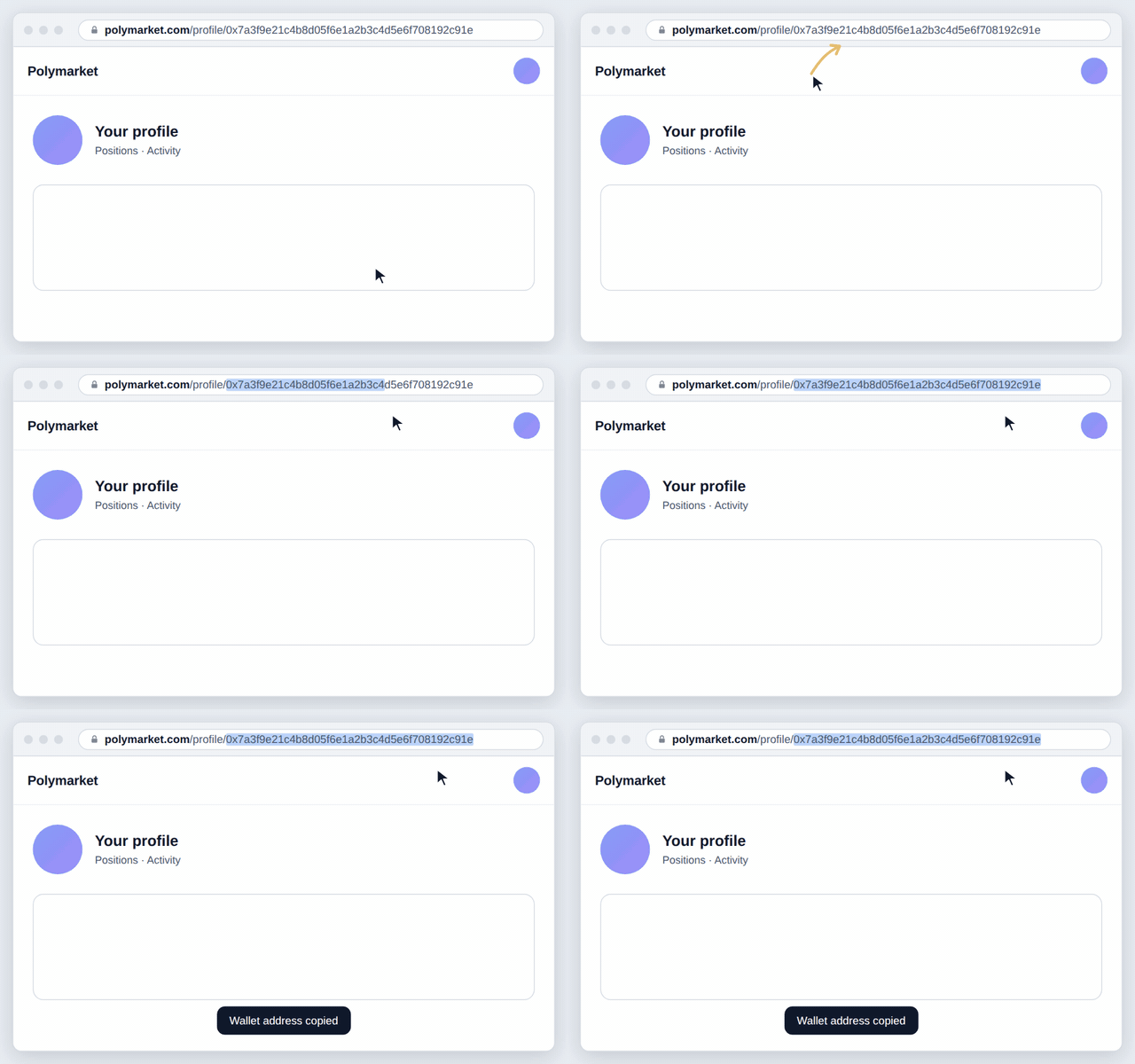
For P&L only. No key neededOn Polymarket, click your avatar (top right), then Profile.
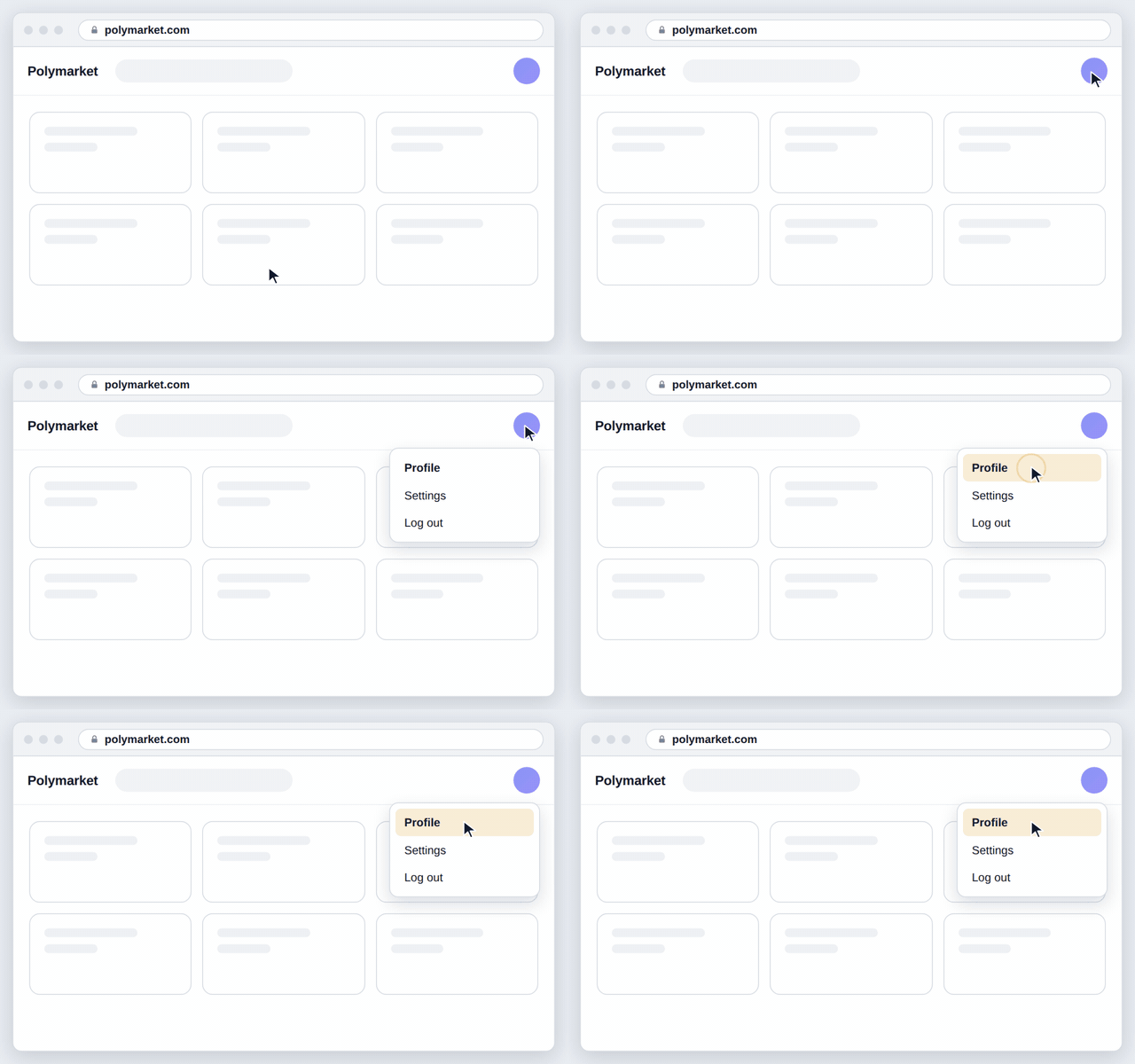
Copy the 0x… address at the end of the page address.
That’s your Polymarket wallet. It’s public, so sharing it is safe.
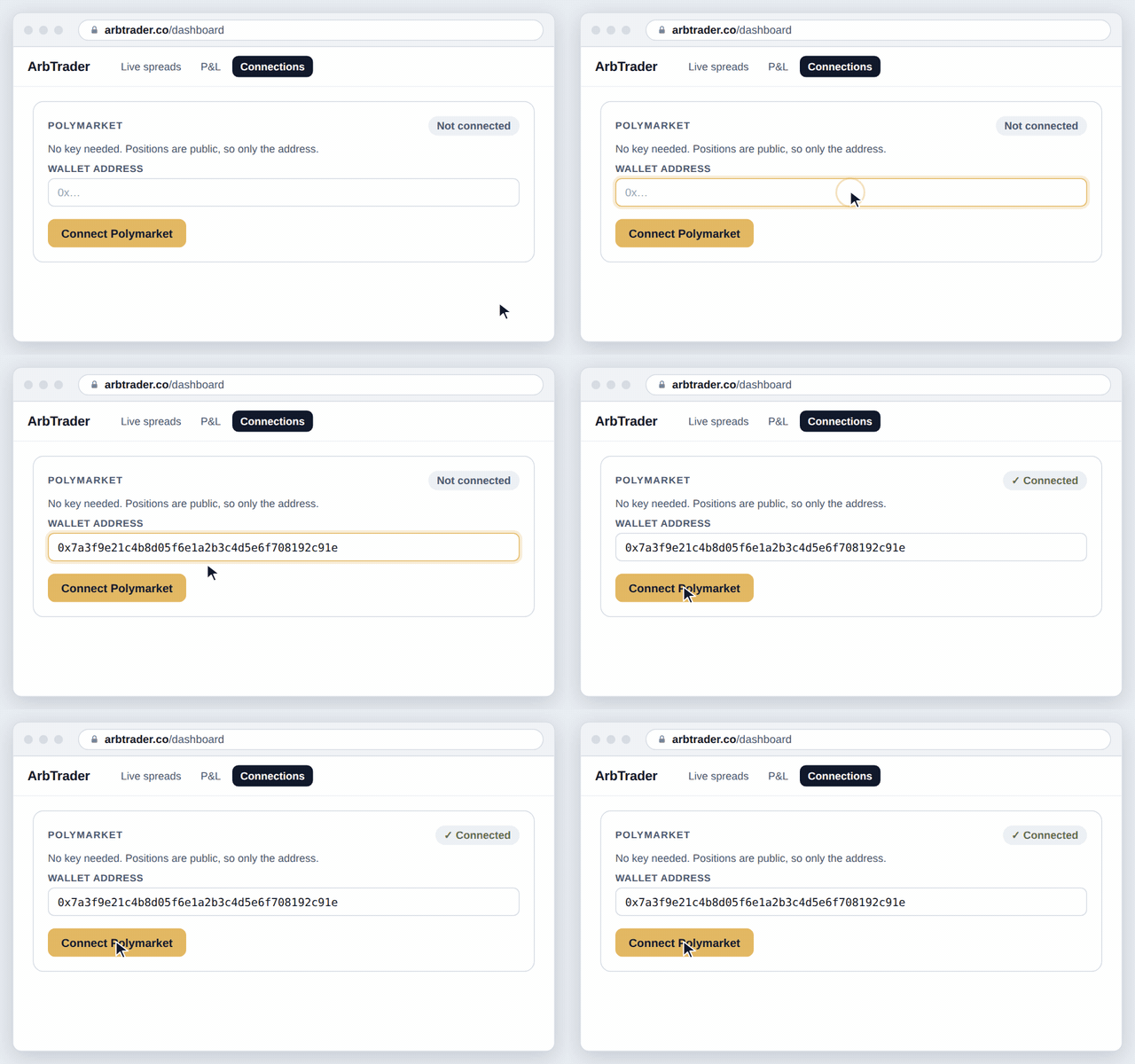
In ArbTrader, paste it and click Connect Polymarket.
Dashboard → Settings → Connections.
More details
Polymarket positions and trades are public, so your P&L needs only your wallet address, no key, nothing to sign. Polymarket.com blocks orders from other websites, so its legs are always placed by you there. For Polymarket US order tickets, connect a Polymarket US key separately.
- Log in at polymarket.com and click your avatar (top right) to open your profile.
- The address bar now shows a URL ending in a long string starting with 0x, that’s your wallet address.
- Copy it and paste it into the Connections tab. No password or key is needed; Polymarket wallet activity is public data.
Polymarket US
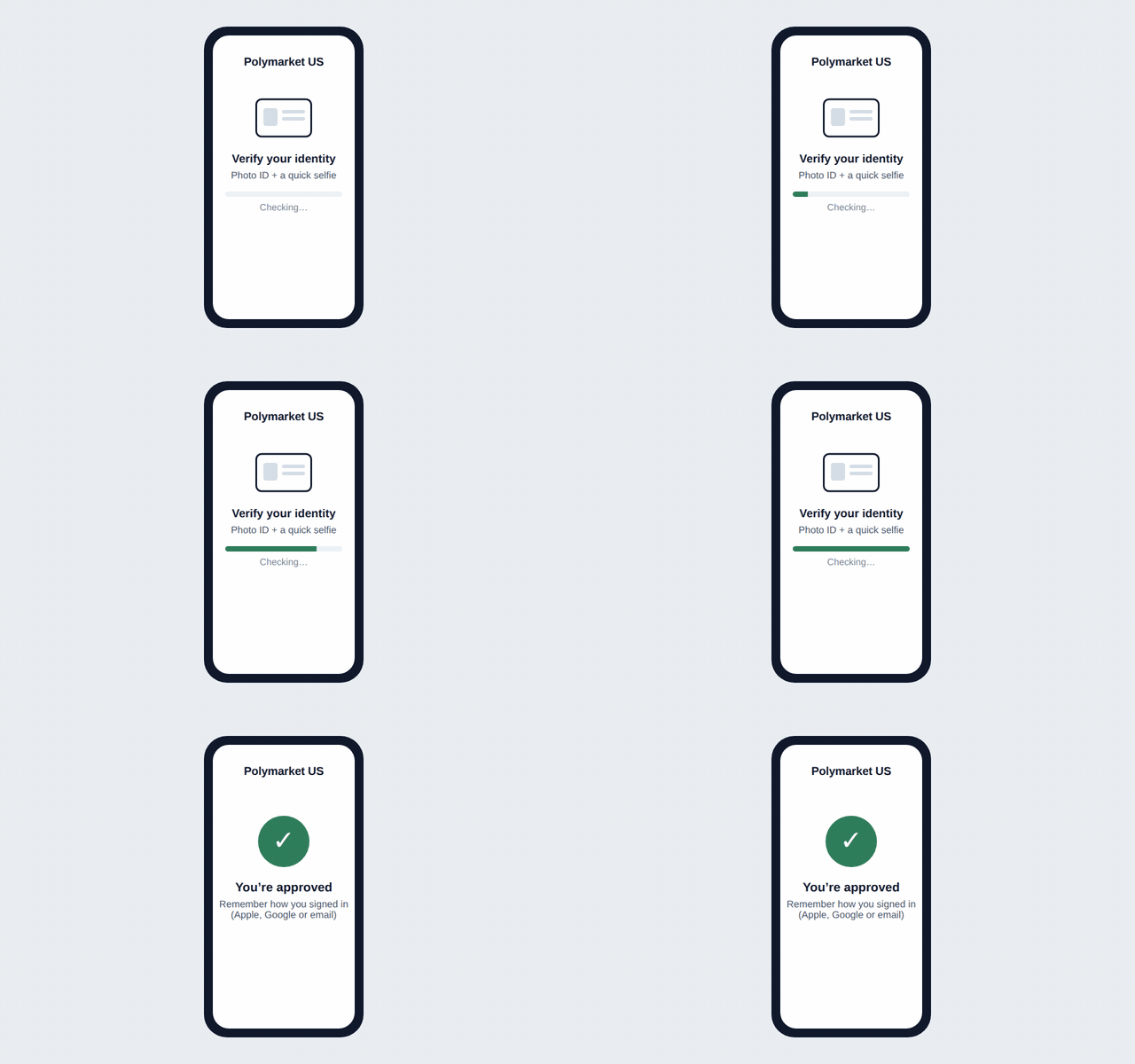
For one-tap tickets on Polymarket US (Quant)In the Polymarket US app, verify your identity.
The app tells you when you’re approved. Remember how you signed in (Apple, Google or email).
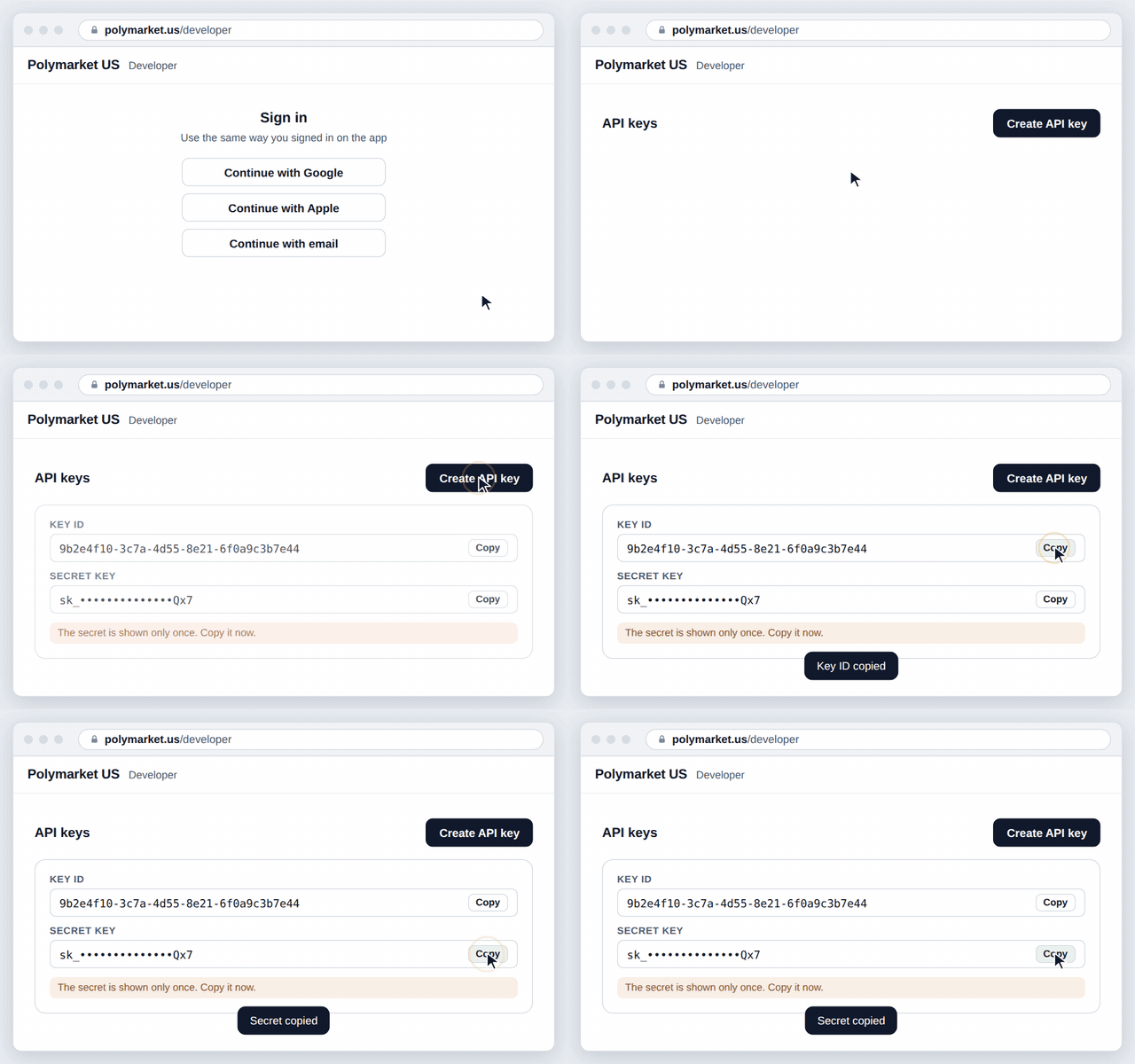
On polymarket.us/developer, sign in the same way and click Create API key.
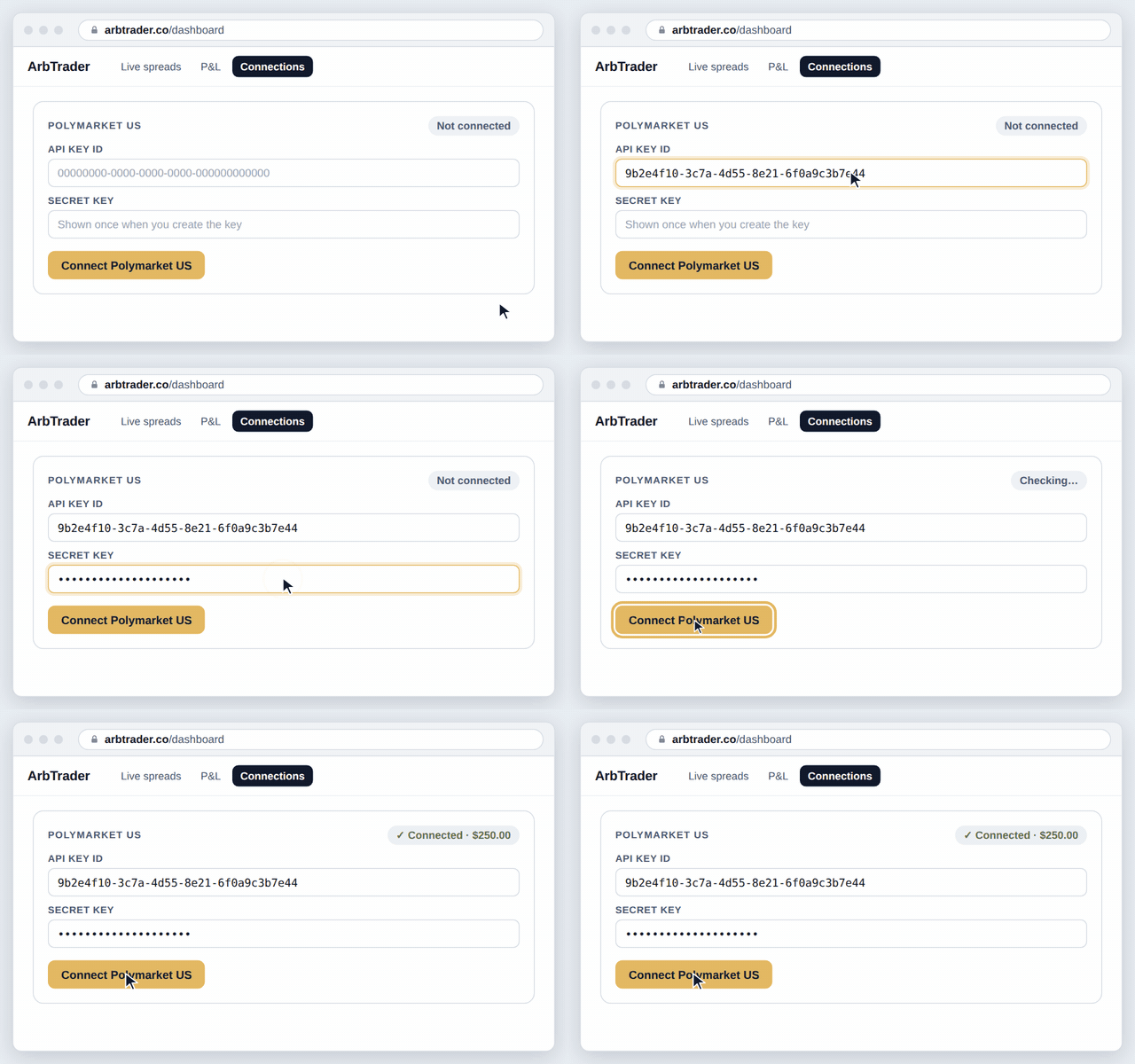
Open Polymarket US developer ↗ Copy the Key ID and the Secret. The secret is shown only once.
In ArbTrader, paste both and click Connect Polymarket US.
Dashboard → Settings → Connections. Keep signing in to Polymarket US the same way, or the key can stop working.
More details and how your key is kept safe
For one-tap tickets on Polymarket US spreads (Quant). Polymarket US keys are Ed25519: the secret is imported into this browser’s key store so page code can sign with it but can’t read it back out. Requests are signed here and passed through arbtrader.co, the secret itself never leaves this browser.
- Get the Polymarket US app and complete identity verification, the app confirms once you’re approved.
- On the web, go to polymarket.us/developer and sign in with the same method (Apple, Google, or email) you used in the app.
- Click to create a new API key. Polymarket US shows a Key ID and a Secret Key.
- Copy the secret now; it’s shown only once.
- Paste the Key ID and Secret Key into the Connections tab.
- Keep signing in with that same method afterward; switching it can break this key.